
Getting around the new schedule
Instrukt 2.0 makes it faster to see what's happening at your studio and get where you need to go. Here's how to move around the schedule.
What you'll see
Every class on your schedule is color-coded, so you can see where things stand at a glance:
- Red: any class that needs a sub.
- Purple (Subbing): a class you're subbing.
- Blue (Teaching): a class you're scheduled to teach.
- Gray (Canceled): a class that's been canceled.
- White: every other class. A Subbed badge means another instructor picked it up, and the sub's name shows on the class.
Check your week at a glance
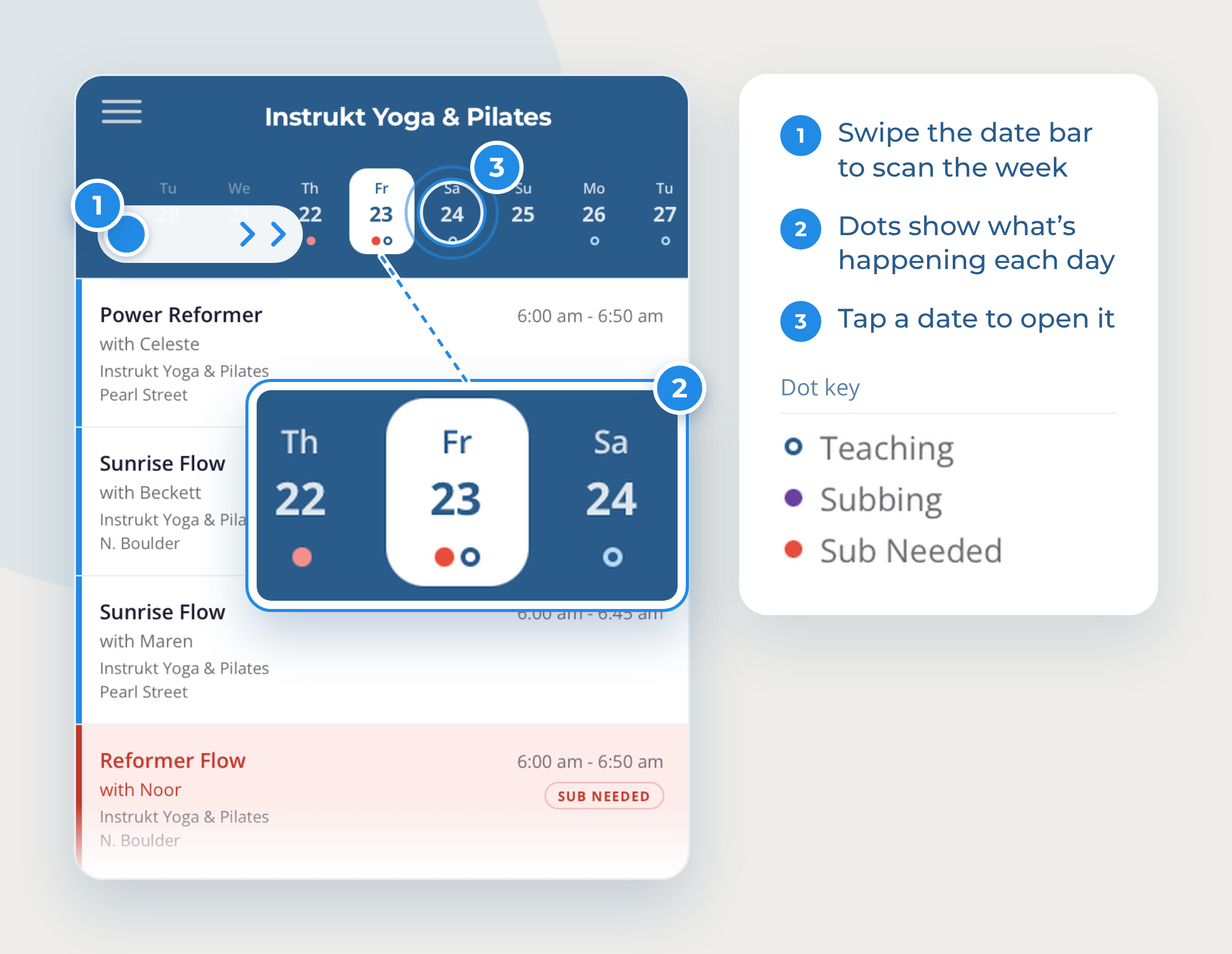
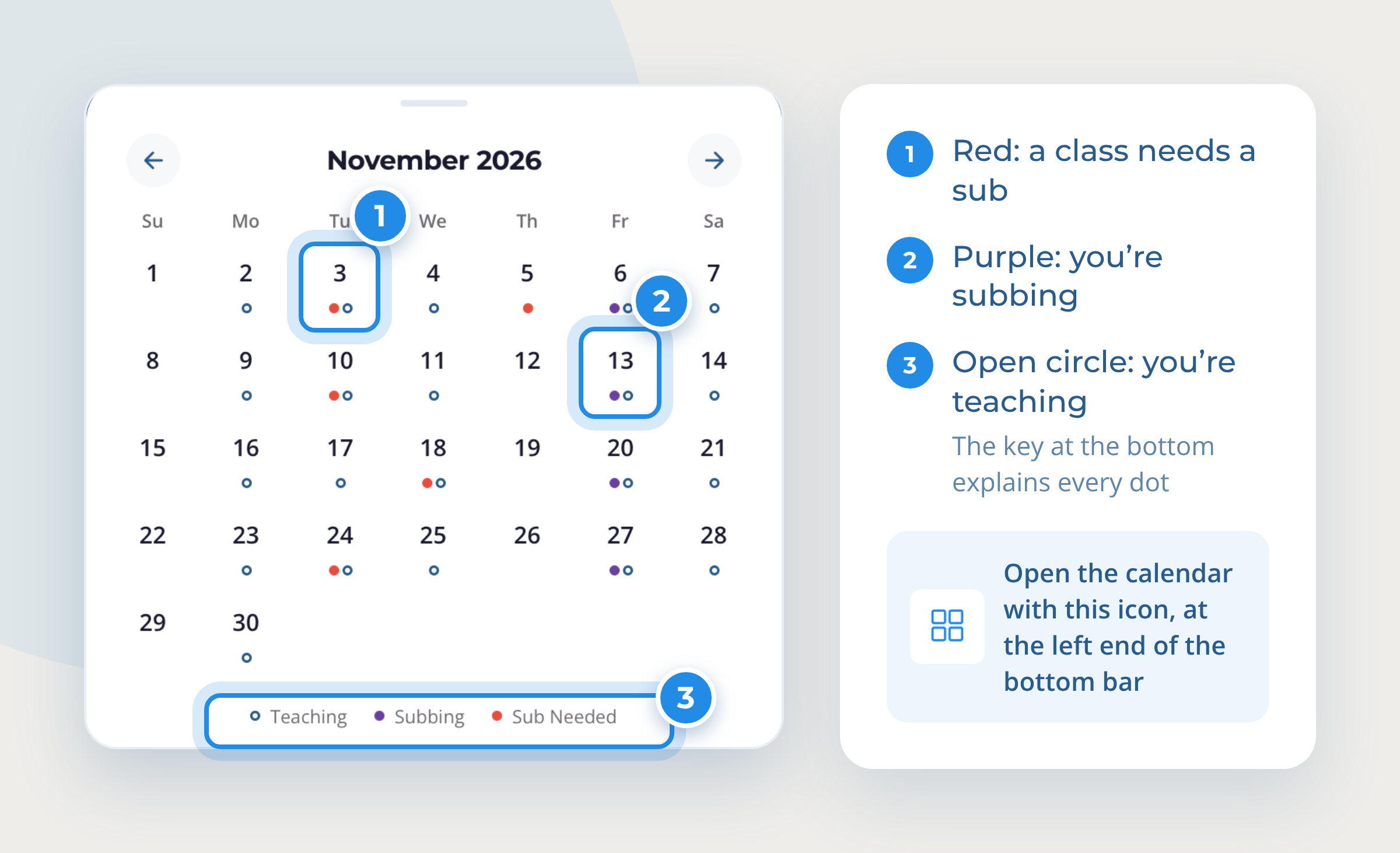
Swipe left or right across the date bar at the top of the schedule to scan the days ahead. The dots under each date show what's happening that day: red for a class that needs a sub, purple for a class you're subbing, and an open circle for a class you're teaching. You can spot what needs attention without opening anything. Tap a date to open that day.
Scroll through the day
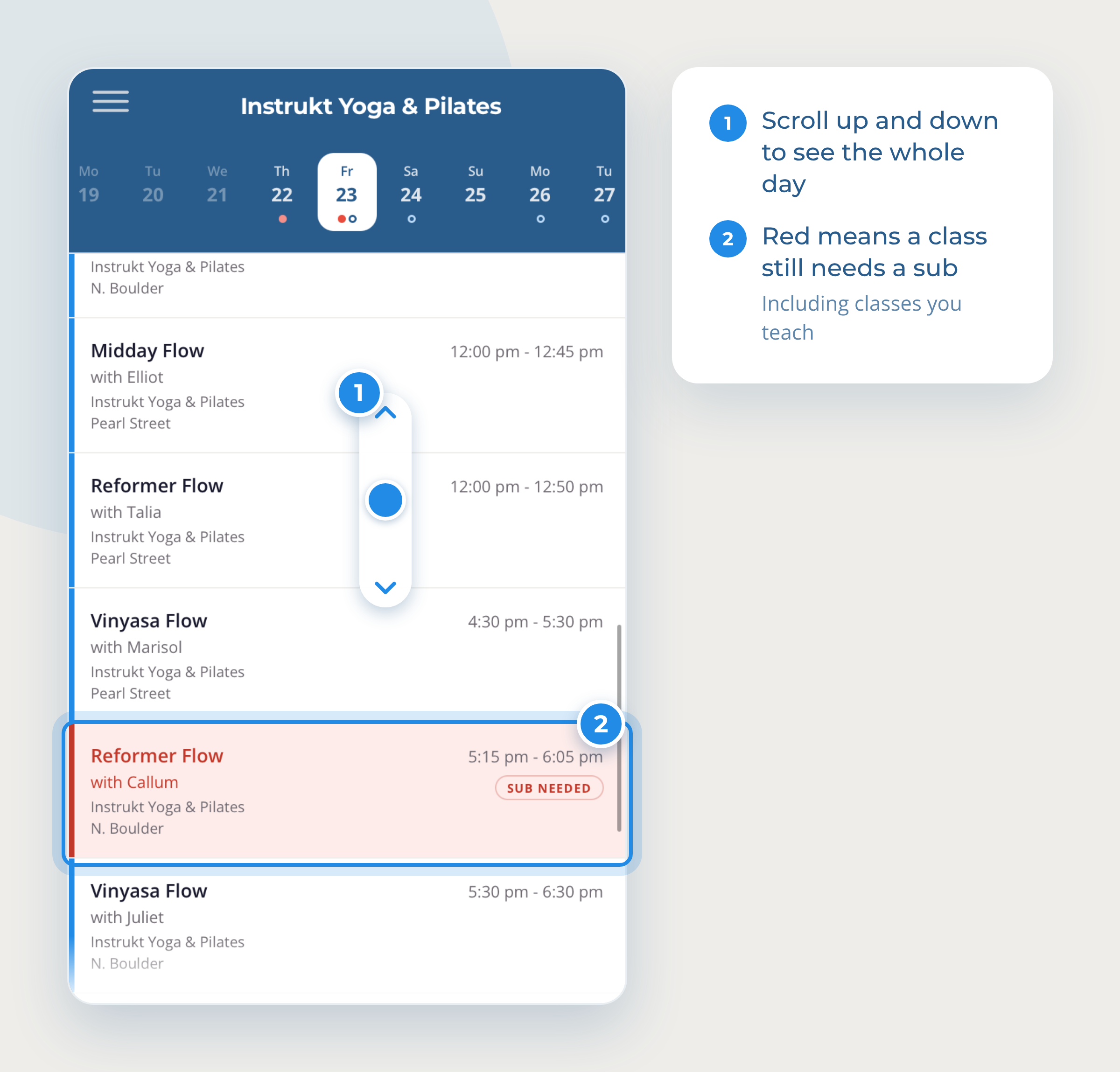
Scroll up and down to see every class that day. Each class shows its sub status right on the schedule, and every class that needs a sub shows in red, including classes you teach.
Move from day to day
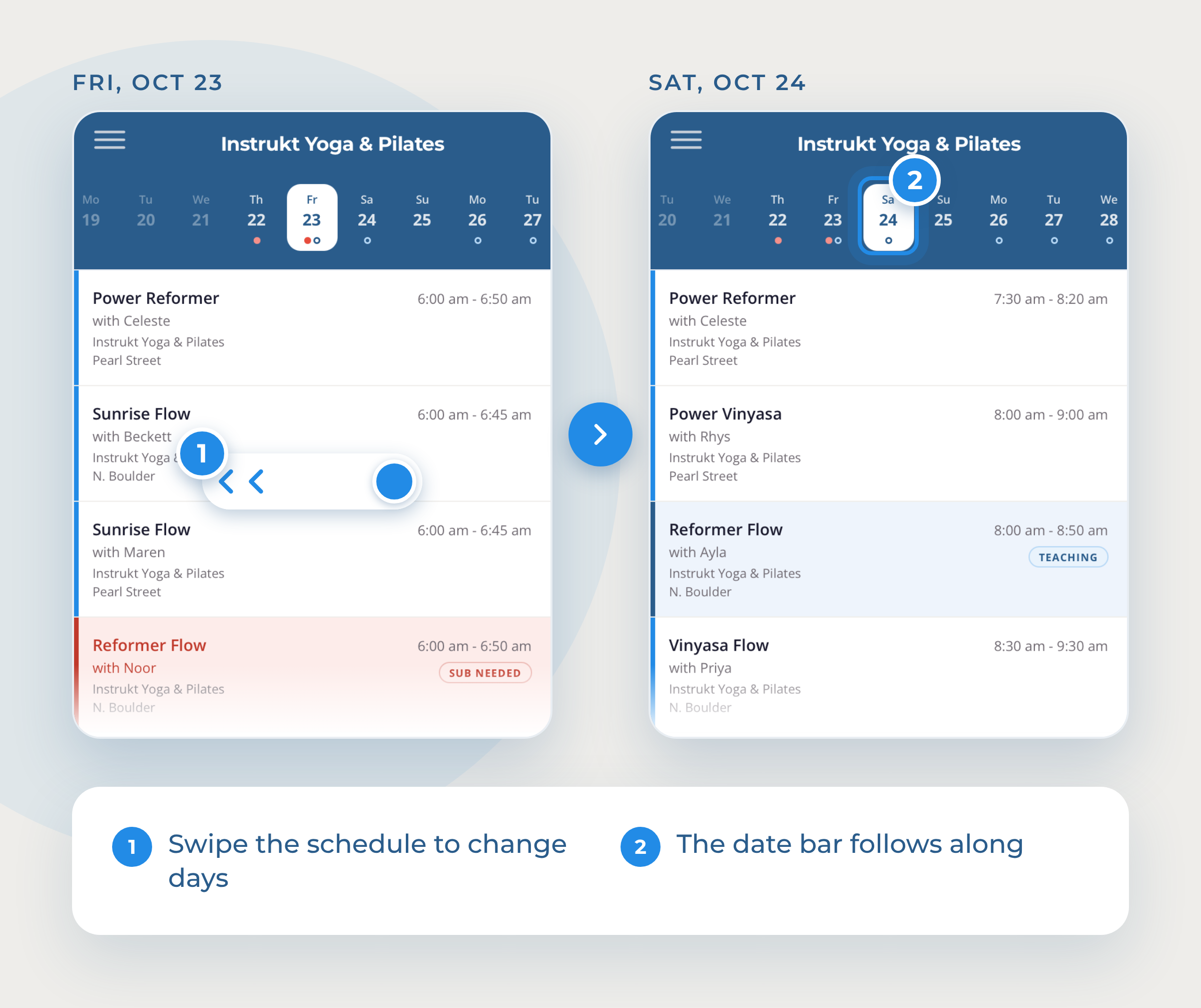
Swipe the schedule left or right to go to the previous or next day.
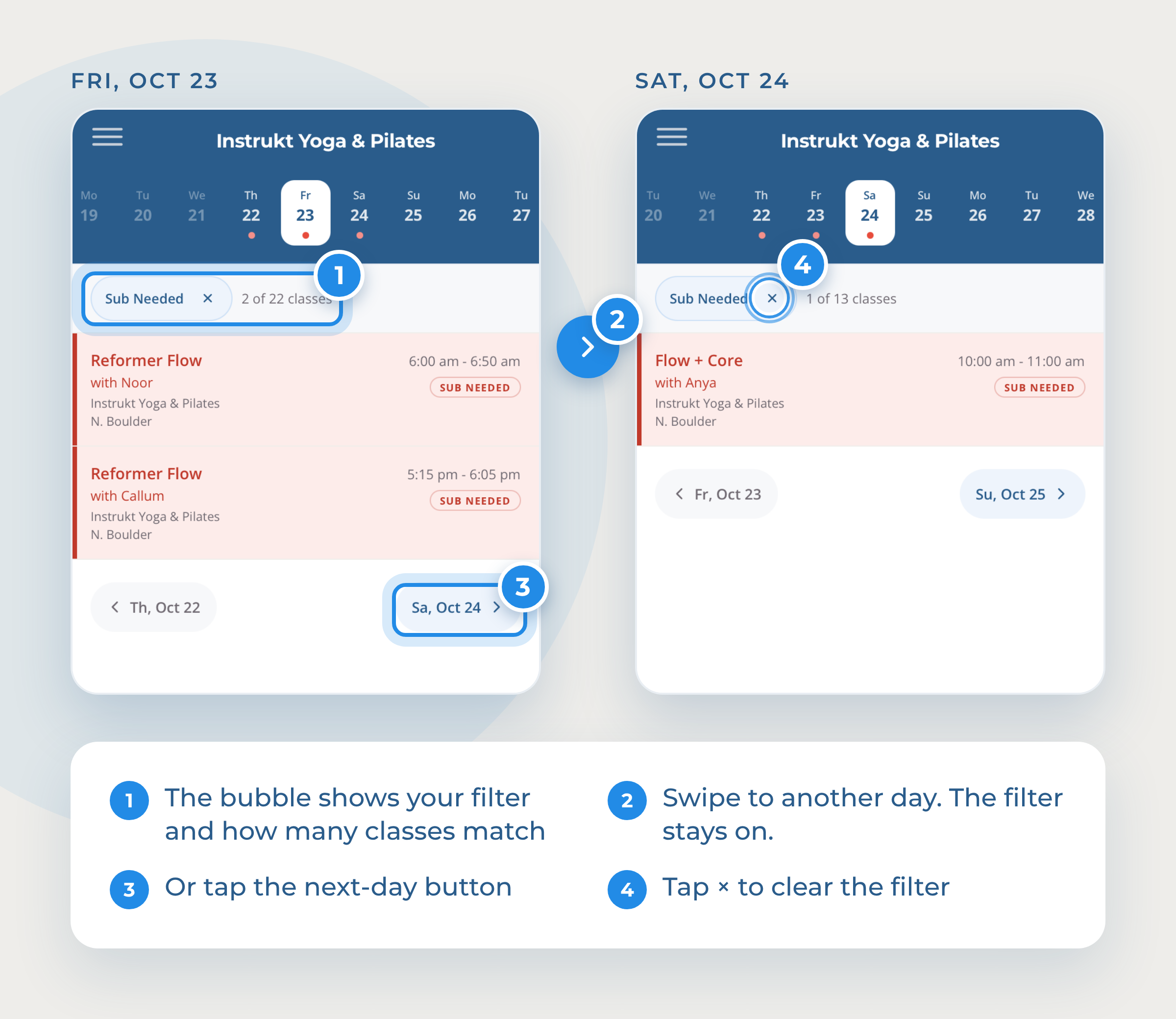
Filter the day view
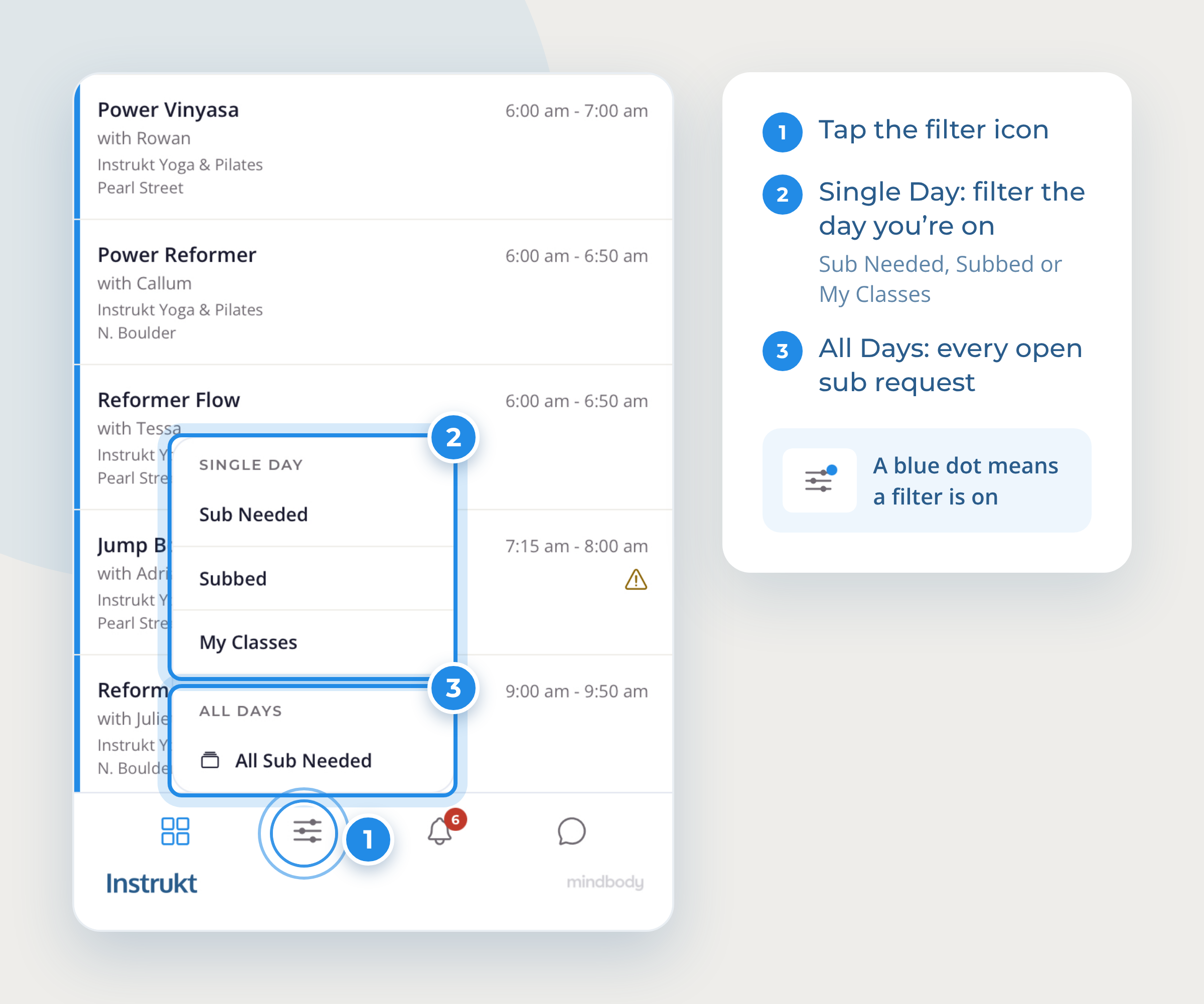
Tap the filter icon in the bottom bar. Under Single Day, choose a filter to show only the classes you care about:
- Sub Needed: classes that still need a sub
- Subbed: classes that have been subbed
- My Classes: classes you teach or are subbing
Your filter stays on as you swipe from day to day, so you can move through the week looking at just what matters. A blue dot on the filter icon tells you a filter is on, and the count next to the filter bubble shows how many of the day's classes match. You can also use the previous and next day buttons below the list to move between days. To clear the filter, tap the × on the filter bubble at the top of the schedule.
Tip: Turn on Sub Needed and swipe through the week to check coverage one day at a time.
See every open sub request in one list
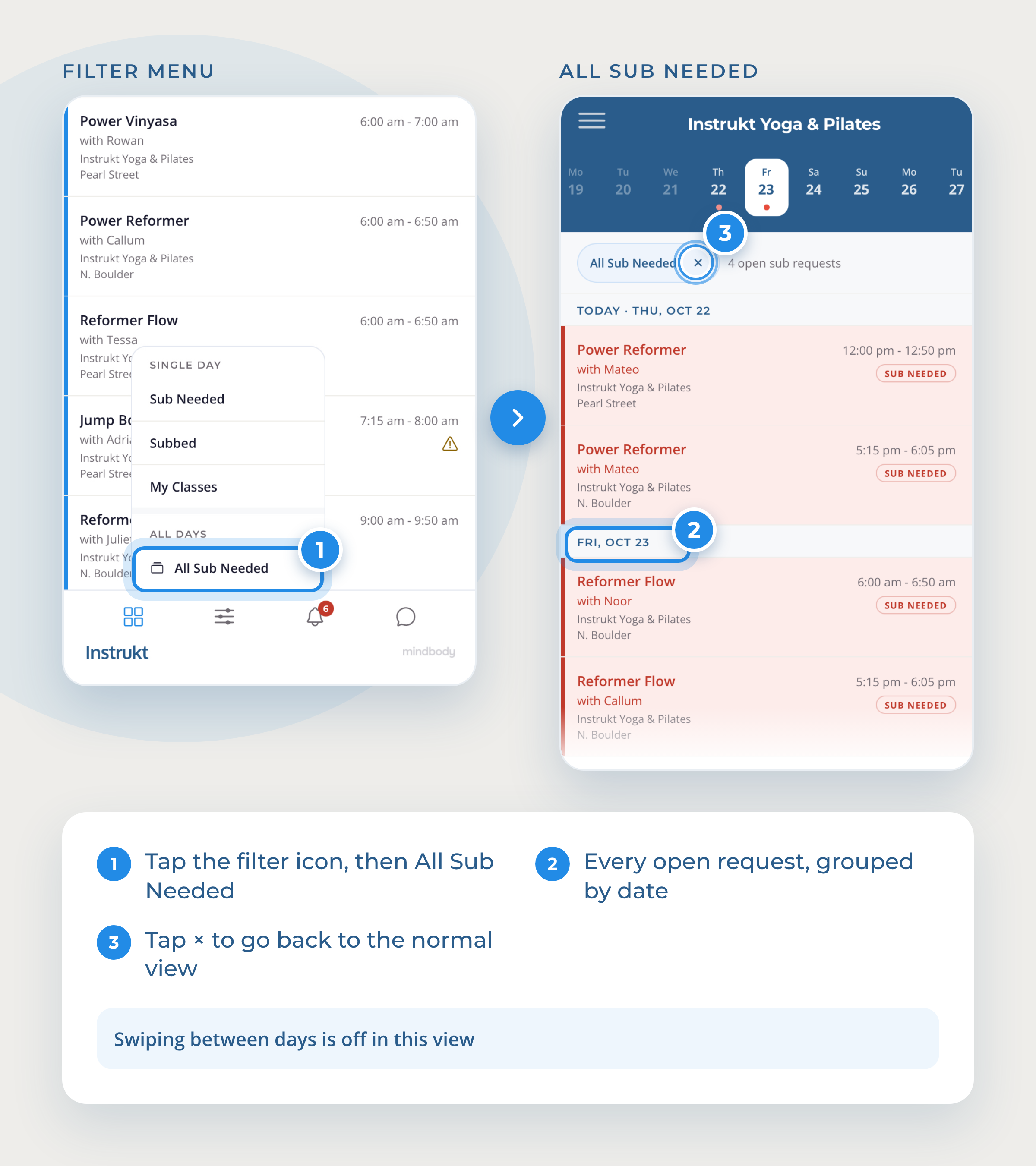
Tap the filter icon in the bottom bar, then under All Days choose All Sub Needed to see every open sub request in a single list, grouped by date. Scroll up and down to see them all. It's the fastest way to see everything that still needs a sub.
Note: While All Sub Needed is on, every day with an open request is already on one screen, so swiping between days is turned off. Tap the × on the filter bubble at the top of the schedule to go back to the normal view.
See the whole month
Tap the calendar icon at the left end of the bottom bar to see status for the whole month. The dots match the ones in the date bar, and a key at the bottom of the calendar shows what each one means.
Quick reference
| To do this | Do this |
|---|---|
| Scan the week's status | Swipe the date bar left or right |
| Open a day | Tap the date |
| See the whole day | Scroll up or down |
| Go to the next or previous day | Swipe the schedule left or right |
| Show only one status | Tap the filter icon and choose Sub Needed, Subbed or My Classes |
| Clear a filter | Tap the × on the filter bubble at the top of the schedule |
| See every open sub request | Tap the filter icon, then All Sub Needed |
| See the whole month | Tap the calendar icon on the left of the bottom bar |
Questions? Email support@instruktapp.com and we'll help.