
Instructor Schedule Navigation
Instrukt 2.0 makes it easier to see your classes and pick up subs. Here's how to get around your schedule.
What you'll see
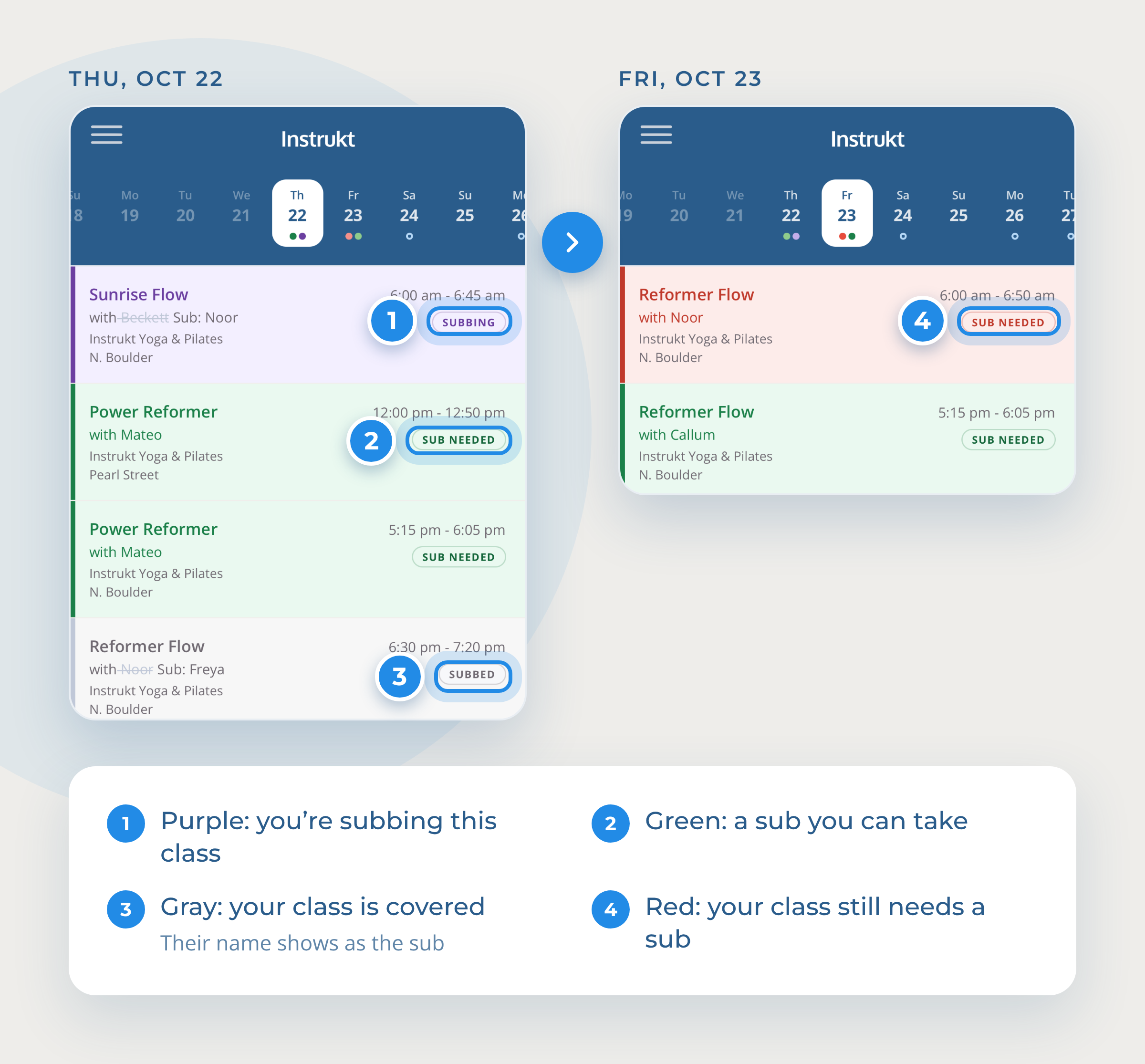
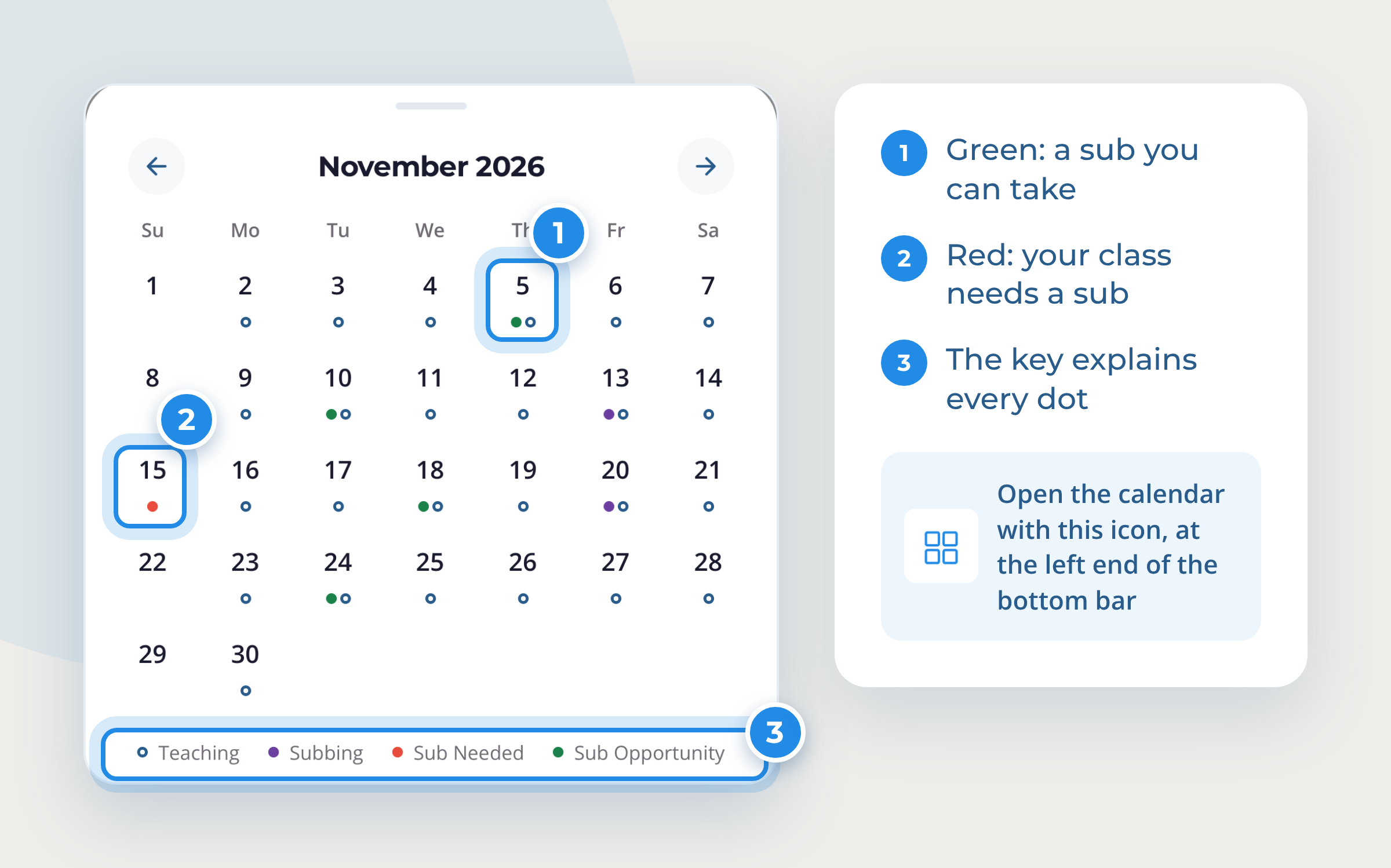
Your schedule shows your classes and any open sub opportunities available to you. Colors tell you what's what:
- Green: a sub opportunity. Another instructor needs a sub, and you can pick it up.
- Red: your class that needs a sub. You've requested a sub and it hasn't been covered yet.
- Purple (Subbing): a class you've picked up as a sub.
- Gray (Subbed): your class that another instructor picked up. Their name shows as the sub.
- Blue (Teaching): a class you're scheduled to teach.
Tap any class to see its details. To pick up a sub (green class), tap it, then tap Sub This Class.
Check your week at a glance
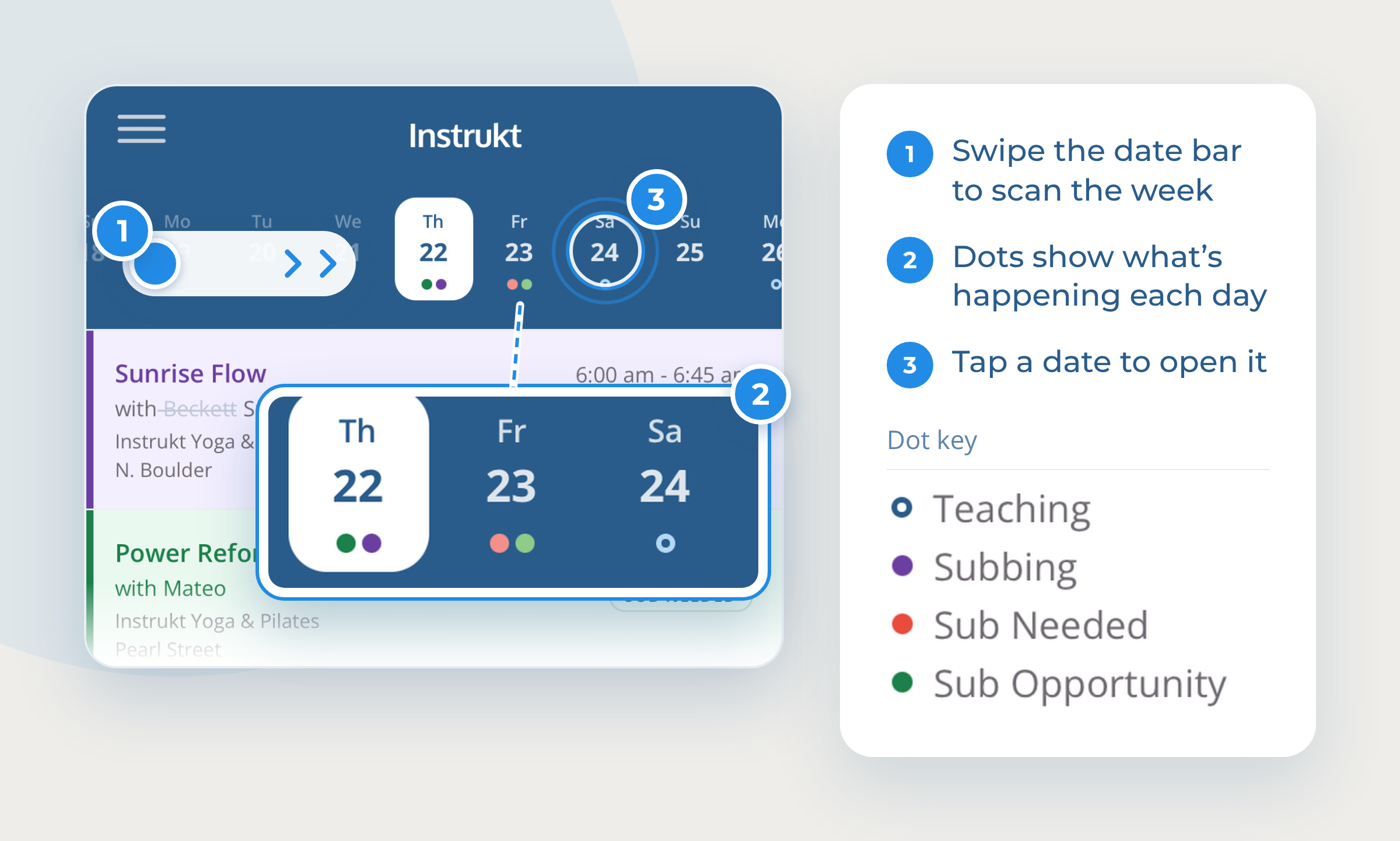
Swipe left or right across the date bar at the top to scan the days ahead. The dots under each date show what's happening that day, so you can spot sub opportunities and your open requests without opening anything. Tap a date to open that day.
Scroll through the day
Scroll up and down to see everything on your schedule that day.
Move from day to day
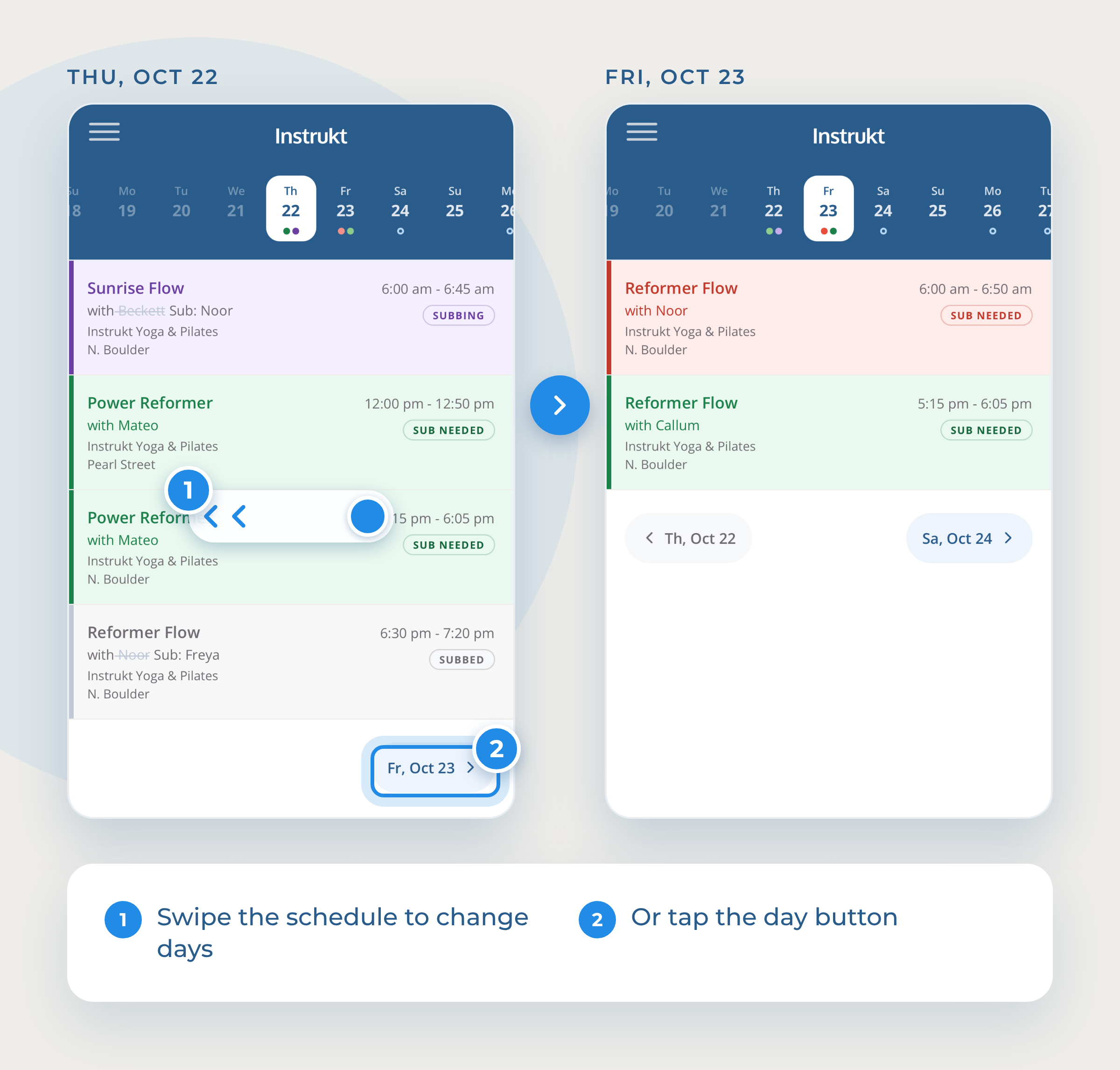
Swipe the schedule left or right to go to the previous or next day, or tap the day buttons below the list.
See every open sub in one list
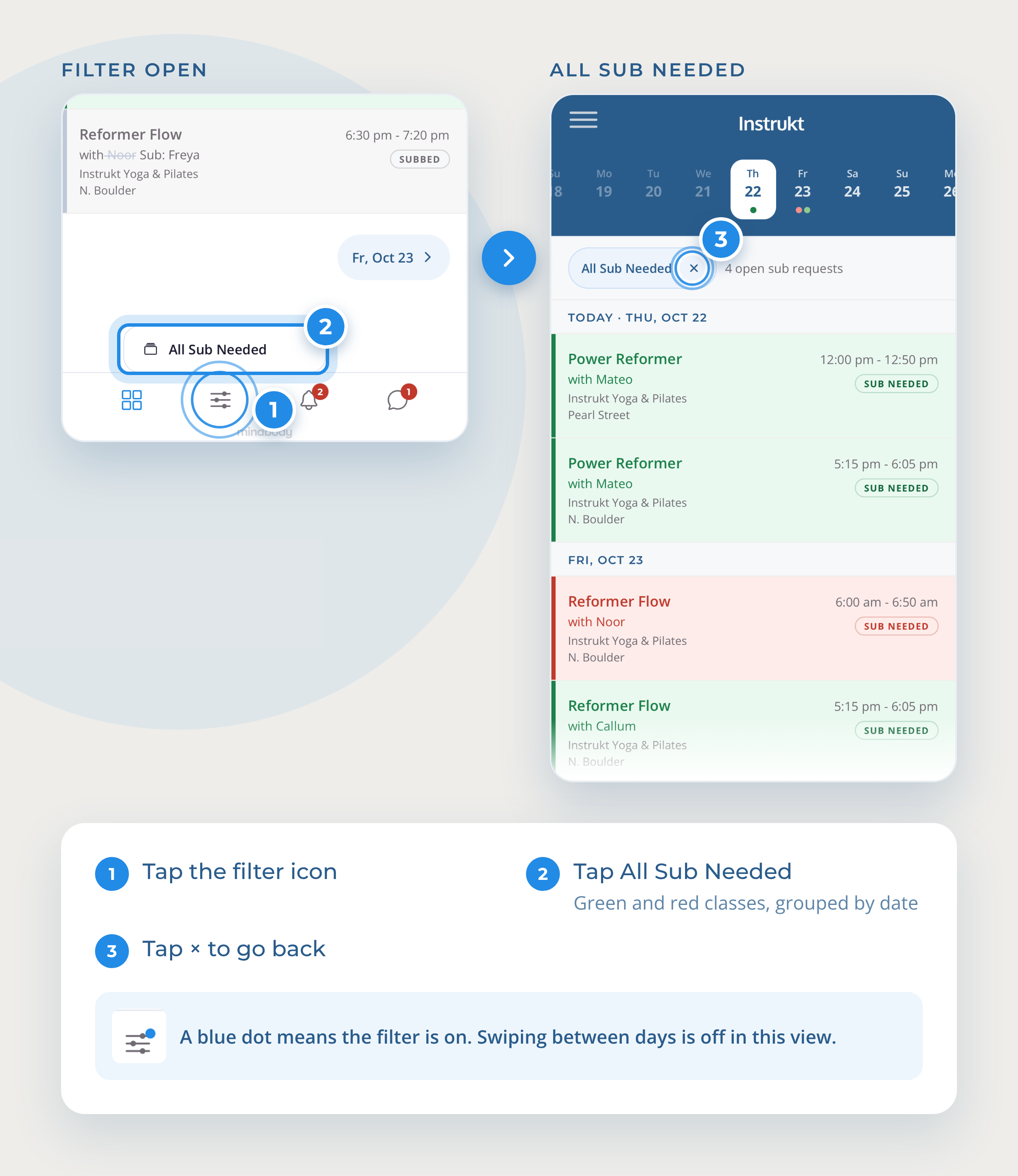
Tap the filter icon in the bottom bar, then tap All Sub Needed to see every sub opportunity (green) and every one of your own open requests (red) in a single list, grouped by date. Scroll up and down to see them all. A blue dot on the filter icon tells you the filter is on.
Note: While All Sub Needed is on, everything is already on one screen, so swiping between days is turned off. Tap the × on the filter bubble at the top of the schedule to go back to the normal view.
See the whole month
Tap the calendar icon at the left end of the bottom bar to see the whole month. Dots mark the days with sub opportunities or your open requests, and they match the dots in the date bar.
Quick reference
| To do this | Do this |
|---|---|
| Scan the week | Swipe the date bar left or right |
| Open a day | Tap the date |
| See the whole day | Scroll up or down |
| Go to the next or previous day | Swipe the schedule left or right |
| Pick up a sub | Tap a green class, then Sub This Class |
| See every open sub in one list | Tap the filter icon, then All Sub Needed |
| Go back to the normal view | Tap the × on the filter bubble at the top |
| See the whole month | Tap the calendar icon on the left of the bottom bar |
Questions? Ask your studio, or email support@instruktapp.com.