
Request a sub
Open the detail screen for the class by tapping on it from your schedule view.
- Tap on the class in the schedule
- Optional: Include a comment
- Optional: choose preferred subs (see below).
- Tap Request Sub.
After tapping on Request Sub, you will be asked for one more confirmation that you want to request a sub for this class. If everything looks good, tap confirm and your sub request will be submitted immediately and delivered to all available subs.
Comments can include anything you'd like to include about your sub request. Some studios may request that instructors include specific information about their sub request
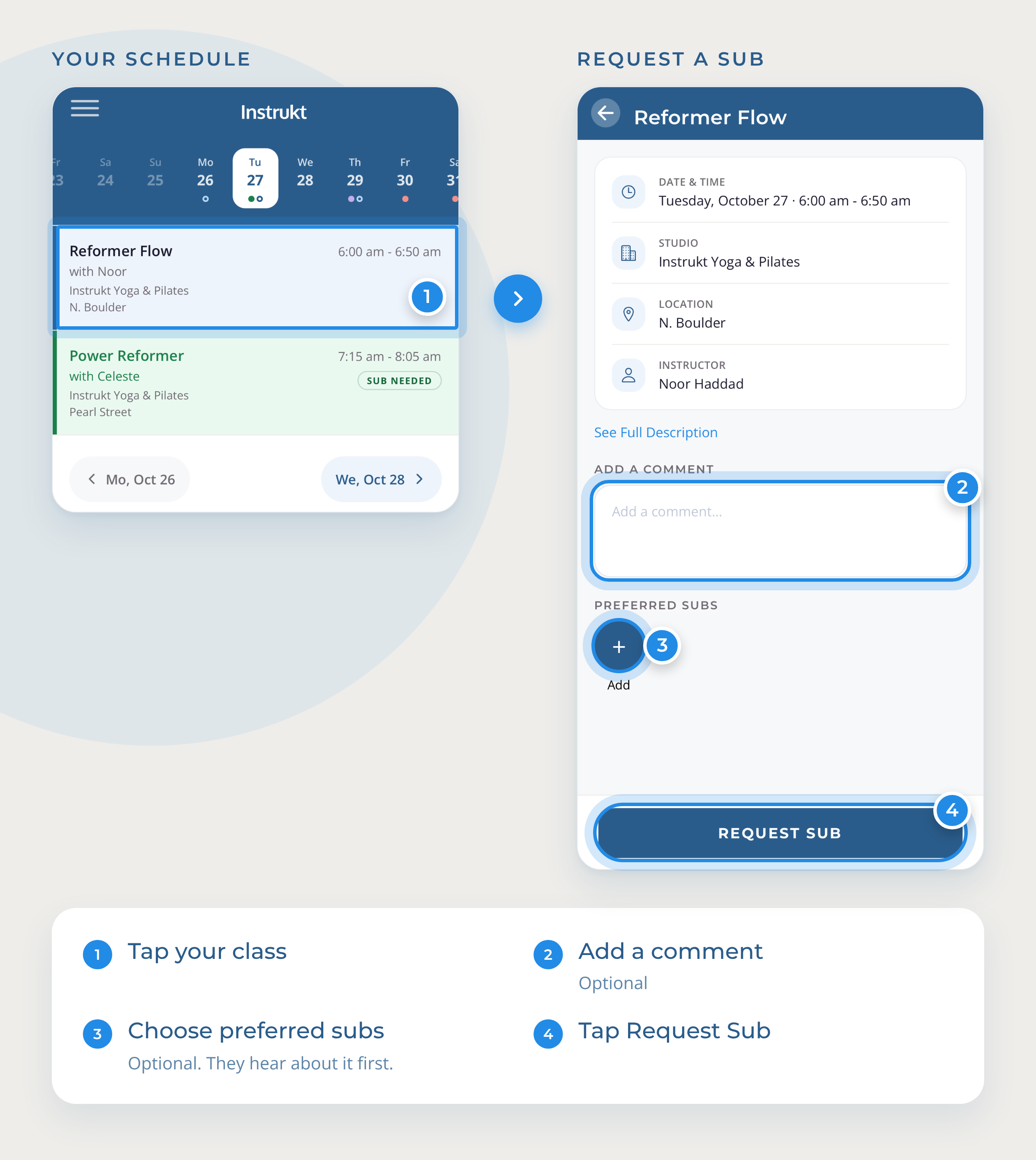
Your class will be highlighted red and display a "sub needed" badge until someone picks it up. When an instructor accepts, you'll get a notification, and your studio's Mindbody schedule will be updated. You will see the covered class in gray in your schedule and the name of the sub will be shown on the class.
You can request a sub any time before class starts.
Preferred Subs
Sometimes you know who would be the best fit to teach your class. Or already worked out a sub with someone? Choose them as preferred subs:
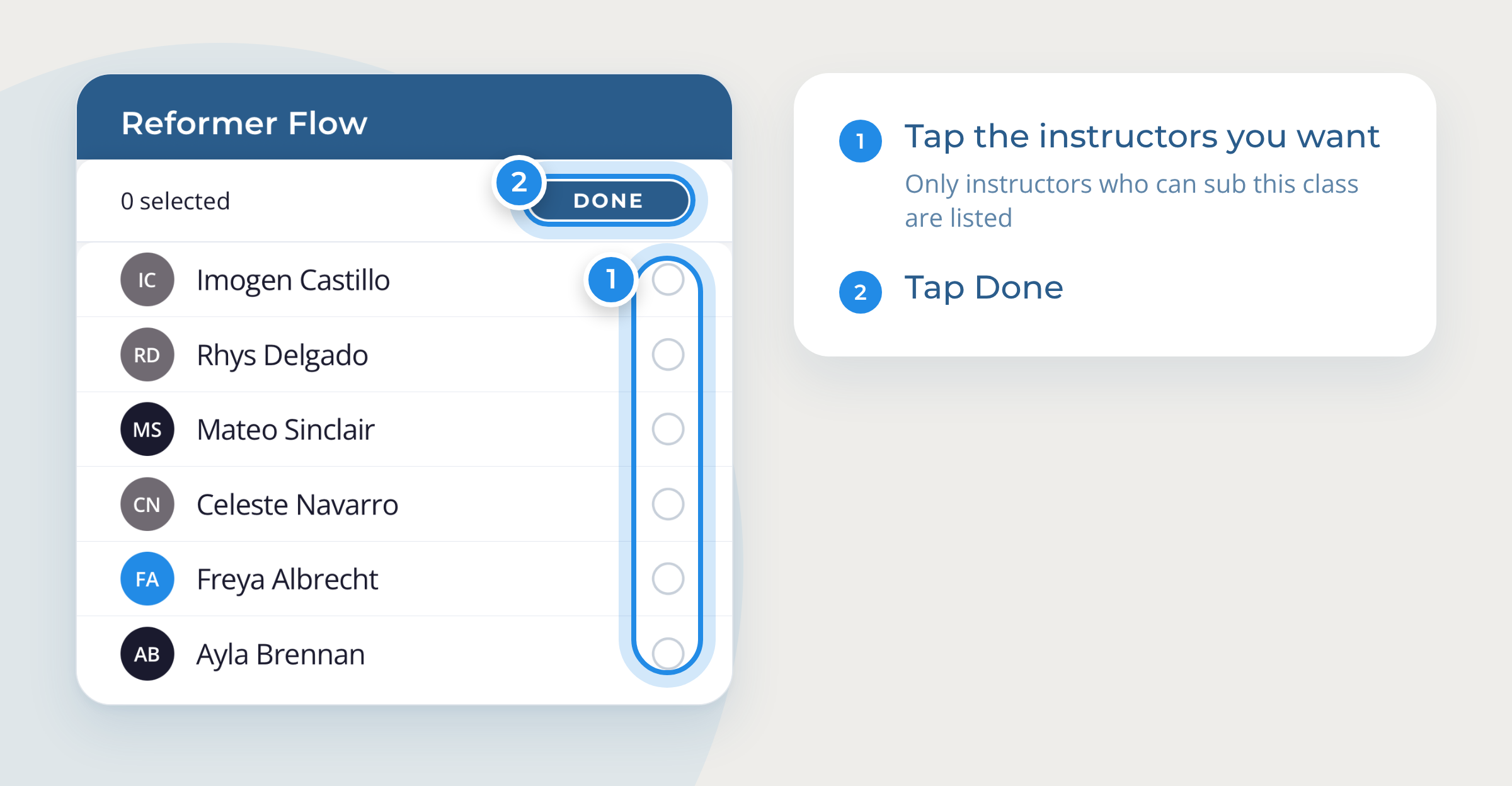
- Under Preferred Subs, tap Add.
- Select the instructors you want to ask first, then tap Done.
Only instructors who can sub your class, and aren't teaching at that time, appear in the list. Preferred subs hear about it first. If none of them accepts before the preferred window closes, your request will be sent to everyone else who has been pre-approved to sub the class. You can learn more about Preferred subs at this link.
After tapping on Done and returning to the class detail screen, you will see the instructors that you have selected as preferred subs listed at the bottom.
Cancel a request
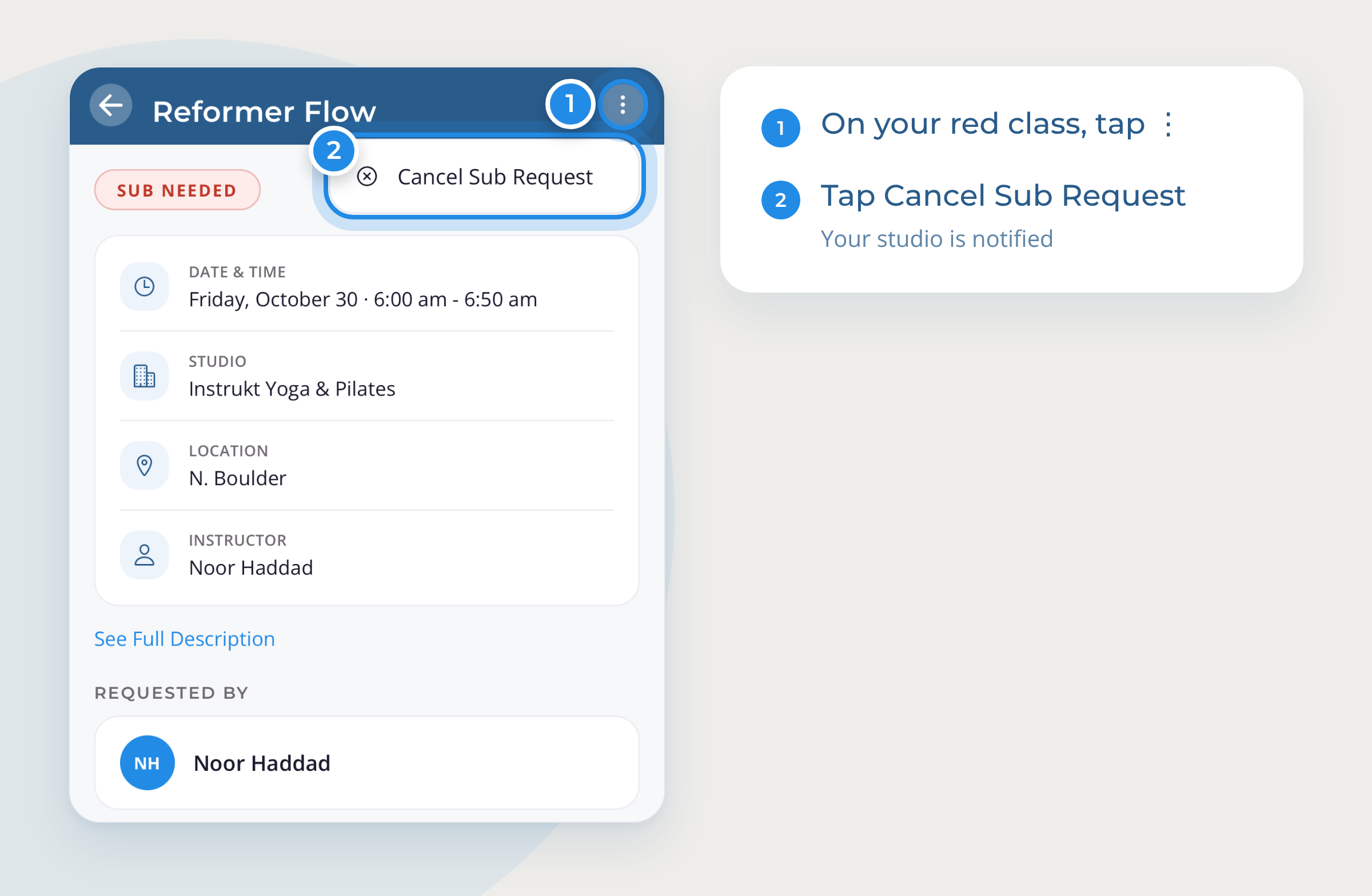
If you no longer need a sub, open the class detail screen by tapping on the class in the schedule view, tap ⋮ in the top right, then tap Cancel Sub Request. The sub request will be canceled and it will be removed from other instructors' view.
You can cancel requests you made yourself. If your studio management requested it for you, you will need to ask them to cancel it.
Sub requests that have already been accepted by another instructor cannot be canceled.
Questions? Ask your studio, or reach us at support@instruktapp.com.