
Account Switching
If you own or manage more than one studio, or keep separate accounts for different studios, you can now stay logged in to all of them and switch in a tap.
Start by logging in to any of your Instrukt accounts.
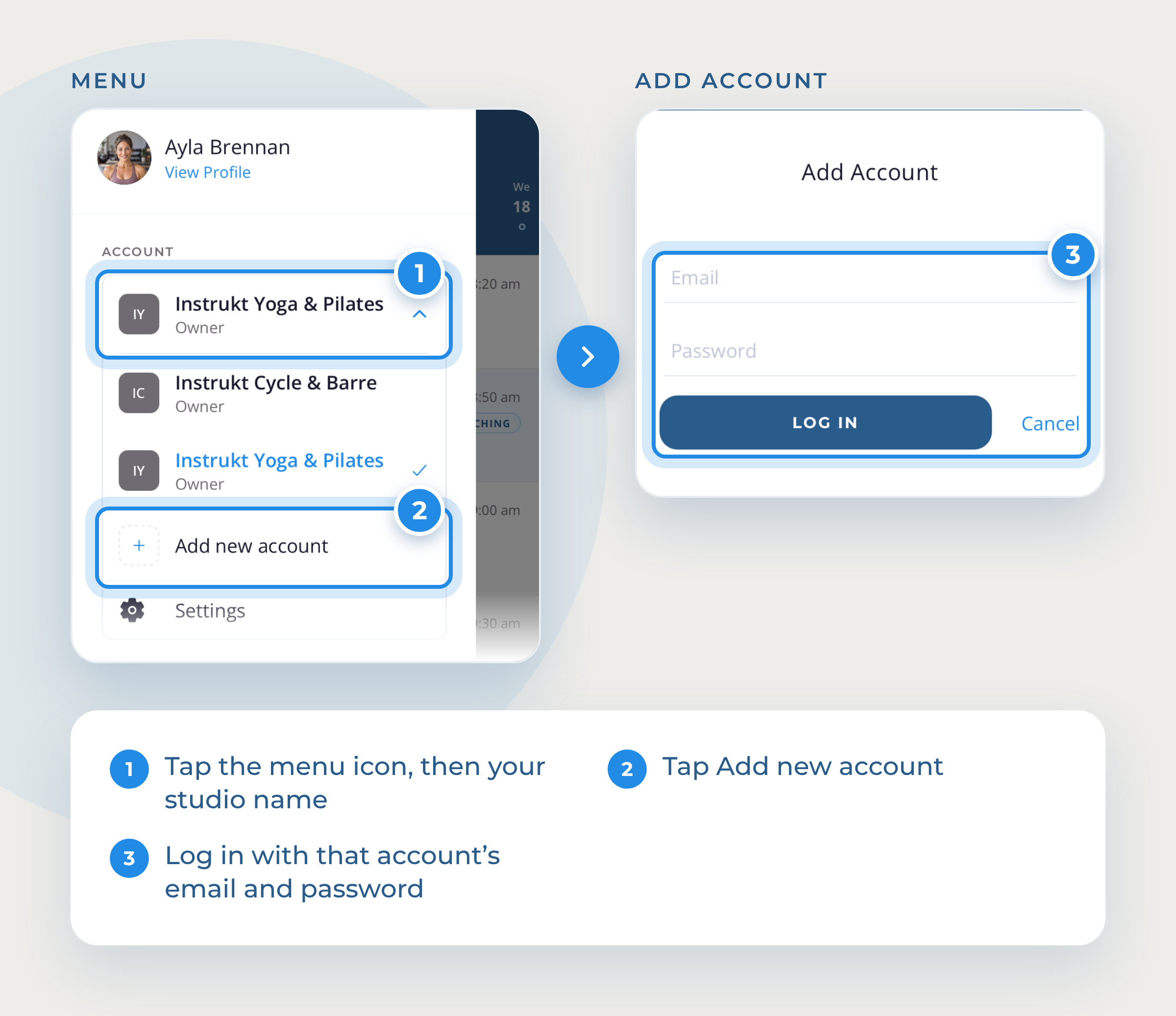
Add additional account(s)
- Tap the menu icon in the top left corner, then your studio name (or your name).
- Tap Add new account.
- Log in using the credentials from the other account.
These instructions cover logging into additional existing accounts. See below for details on creating a new studio or instructor account.
Switch accounts
Tap the menu icon, tap your studio name, then tap the account you want. The checkmark shows the one you're in, and any settings you change apply to that account.
When notifications are turned on for Instrukt in your phone's setting, you will get notifications from all your accounts. Tapping on a notification will switch to the correct account and display the class details.
Settings
Settings apply only to the currently selected studio. To change settings for a different studio, select it to make it active and then tap on settings.
Remove an account
Switch to it, then tap Settings > Logout. Your other accounts stay logged in.
Need a new account?
Each studio with a different Mindbody SiteID needs its own studio account. See Create your studio account, then add it follow the directions above.
Also teach? Your owner or manager account can accept instructor invites too. See Accepting an Instructor Invite.
Questions? Email support@instruktapp.com and we'll help.