
Invite and manage your team
To sub classes in Instrukt, Instructors first need to:
- Be invited to your Instrukt team
- Have class types assigned to define which class formats you pre-approve them to sub
- Have studio locations assigned to define the locations where you pre-approve them to sub
Inviting your instructors creates a link between their staff profile in your MINDBODY account and their Instrukt user account. Instructors who already use Instrukt at another studio do not need to create a new Instrukt account. They can accept an invite to your Instrukt team using the Instrukt account they already have.
Your instructors will be imported from your staff list in Mindbody automatically. After a quick set up in Instrukt, they're ready to go.
Invite instructors
Instructors are managed in the app from the settings menu of an owner or manager account. Instructors who haven't been fully set up yet will show up on the Inactive tab.
- Go to Settings > Instructors, tap Inactive, then tap the instructor.
- Check the Invitation Email, which is imported from Mindbody, if one exists for the instructor. If it's missing, out of date, or you want to use a different one, tap it to edit. Any email they check on their phone works. Then tap Send Invite, and we'll email them the invite.
- Choose the class types they can sub, then tap Locations and choose where they can sub. Tap Done.
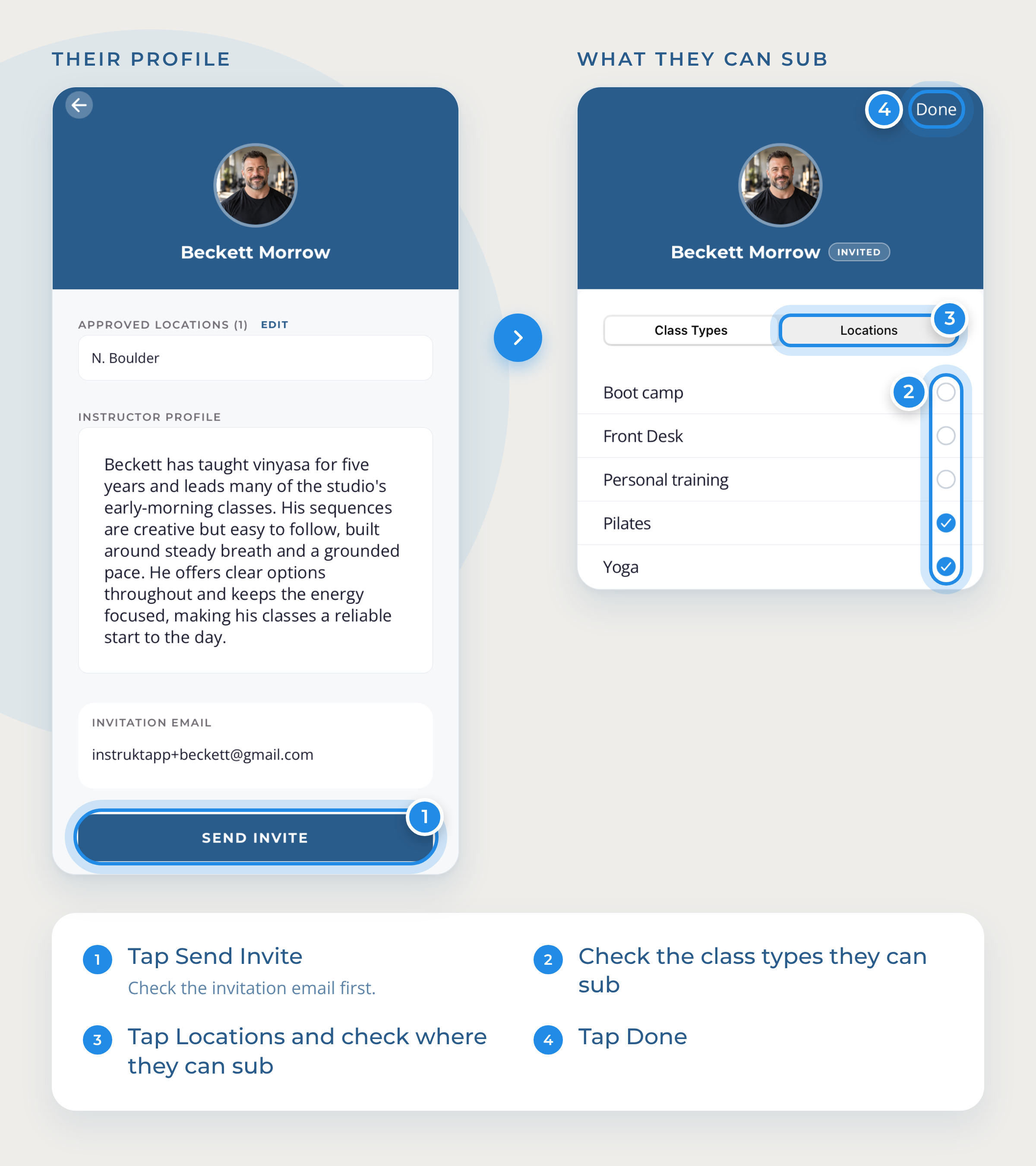
An instructor's class types are their capabilities, so assign them every class type they can sub, not just what they usually teach. That gives you more people to cover each class. See Set up class types and classes.
Locations where they're on your Mindbody schedule to teach classes will be pre-selected. Add locations to allow them sub there too, or remove one to stop sub requests for it. They can still teach their regular classes at a location where they don't sub.
Inviting your instructors links their Mindbody staff profile to their Instrukt account. They'll get an email with a link to download Instrukt and a button to accept your invite, which they tap on their phone. Already use Instrukt at another studio? They accept with the account they have. You'll get a notification when they accept.
Until an instructor accepts the invite, they show Invited in the Inactive list. The number next to Instructors in Settings menu shows you the number of instructors on the inactive list.
Your instructors move to Active once they've accepted their invite and have at least one class type and one location set. If they've accepted but still show as Inactive, just make sure both are set.
Sent it to the wrong email? Open their profile, tap ⋮ to cancel the invite, fix the email, and send a new one.
Teach classes yourself? Send an invite to your own instructor profile and accept it in your owner or manager account. You don't need a separate instructor account. See Accepting an Instructor Invite.
Instructors who only sub, and don't have regular classes, see an empty schedule until a sub opens up for them. That's expected, and nothing needs fixing.
Add new Instructors to your team
Add new instructors in Mindbody the way you always have. They will import from Mindbody and show up on the Inactive tab. Invite them as above. Don't see them yet? Tap Settings > Refresh Studio Mindbody Data.
Change what someone can sub
Go to Settings > Instructors and tap the instructor. Tap Edit next to class types or locations, make your changes, and tap Done.
Add Managers
Studio owners can make an instructor a manager in the account portal. See Setting up managers.
Remove instructors from your team
When an instructor is no longer working at your studio, unlink them in Instrukt and then deactivate them in Mindbody.
Questions? We're happy to help at support@instruktapp.com.