
Set up class types and classes
Class types describe the qualifications a class requires. Set them up once, and every sub request goes only to instructors qualified to teach it.
How class types work
Class types match what a class requires to what an instructor is qualified to teach:
- A class’s class types are its requirements: the qualifications an instructor needs to sub it.
- An instructor’s class types are their capabilities: what they’re qualified to teach.
A sub request goes to instructors whose capabilities cover every requirement on the class, who are set up for that location, and who aren't teaching at that time.
A class needs class types before anyone can request a sub for it.
Think qualifications, not class names
When you set up a class, ask what an instructor needs to be qualified for to teach it, not what the class is called. Sunrise Flow, Power Vinyasa and Slow Flow have different names, but if any of your yoga instructors can teach them, they all need the same class type: Yoga.
- Everyone can sub everything? Use one class type for all your classes and all your instructors.
- Yoga and Pilates studio, where some instructors teach only one? Use two: Yoga and Pilates. A Reformer Flow class gets Pilates, and every Pilates instructor can sub it.
- Only some yoga instructors are qualified to teach prenatal? Give your prenatal class two class types, Yoga and Prenatal. Only instructors with both get the request.
If adding a class type wouldn’t change who can sub a class, you don’t need it. A class type for each class name doesn’t send requests to better subs. It adds setup for every new class and instructor, and leaves each class with fewer subs.
A few class types based on qualifications keep setup quick, give every class more subs, and make it easy to grow. New classes and instructors fit into the class types you already have, so your setup keeps working as your schedule changes.
Give instructors every class type they’re qualified for, not just the classes they teach now. That way your best subs can cover more.
Only owners and managers see class types, and they don't change anything in Mindbody.
1. Choose your studio's class types
Studio owners can log in to their account portal to choose the class types you'll see when setting up classes and instructors. Click Manage Studio Class Types in Account Settings, select the ones you use, and click Save.
Class types come from a list of common qualifications, so you pick instead of building your own. That keeps setup quick and your class types focused, and as your studio grows, new classes and instructors fit into the class types you already have.
To remove a class type, first remove it from every class and instructor.
2. Add class types to your classes
Classes on your Mindbody schedule come into Instrukt automatically. Classes without class types wait on the Inactive tab, and the number next to Classes in Settings shows how many.
- Go to Settings > Classes and tap Inactive.
- Tap a class to see its details from Mindbody, then tap Edit.
- Check its class types and tap Done.
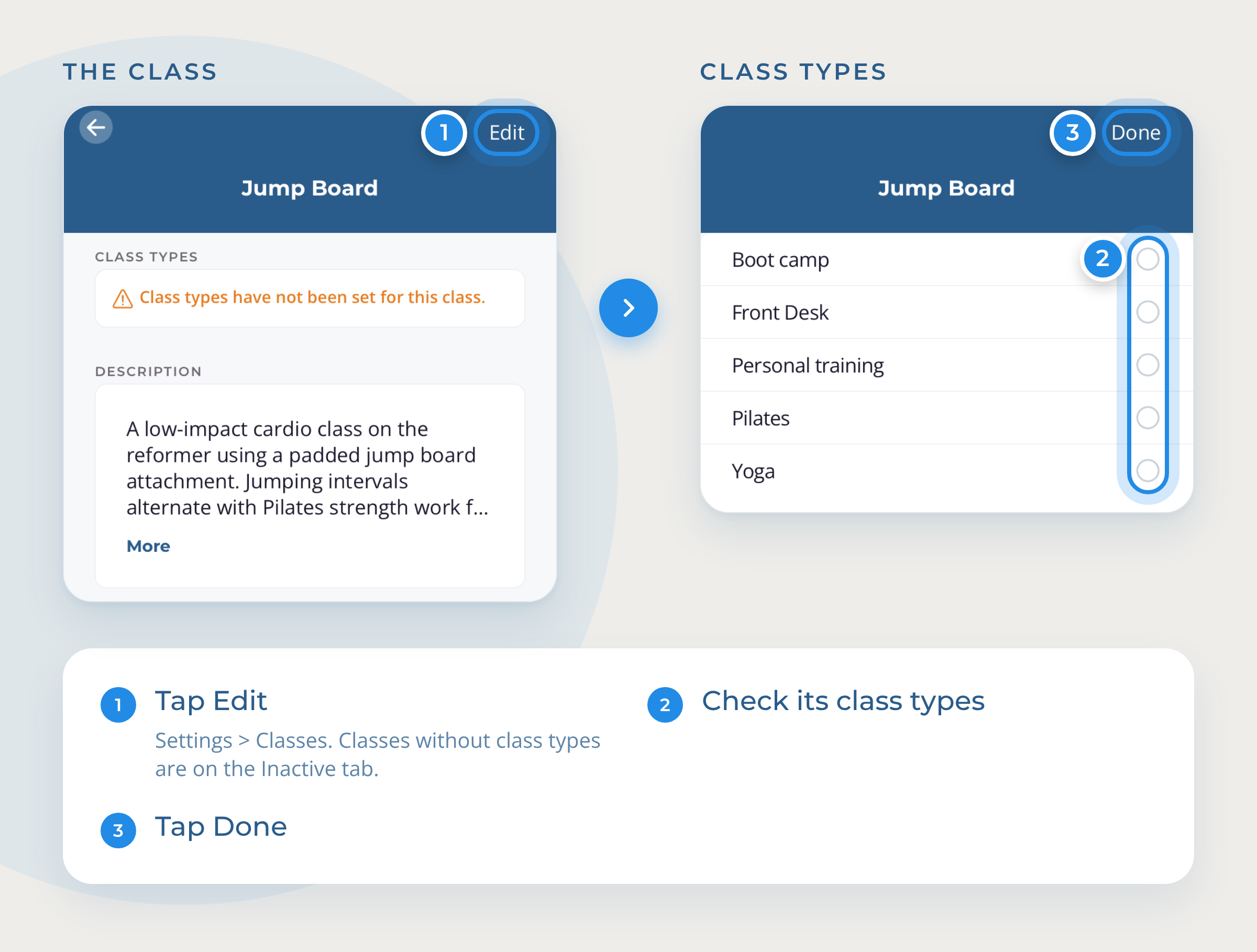
The class moves to Active. You set up each class once, and it applies every time that class is on your schedule.
Until a class has class types, it shows a ! on your schedule, and its details say it needs setup.
To change a class, tap it on the Active tab, then tap Edit.
New class in Mindbody? It shows up on the Inactive tab. Don't see it yet? Tap Settings > Refresh Studio Mindbody Data.
Next: Invite and manage your instructors.
Questions? Email support@instruktapp.com and we'll help.