
Accepting a Sub Request
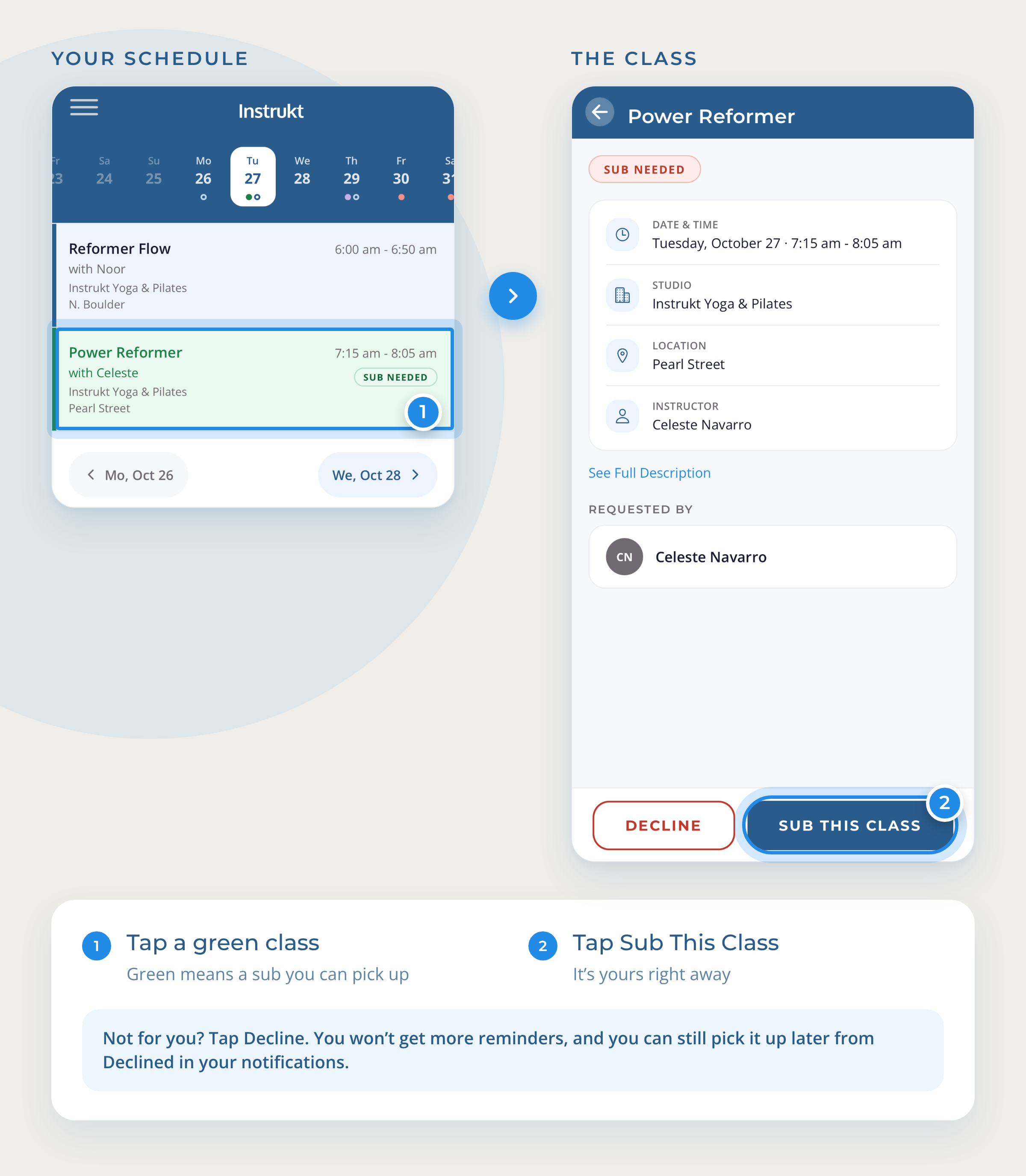
When an instructor at your studio needs a sub, you'll get a notification, and the class shows up in green on your schedule and displays a Sub Needed badge. You'll also see a green dot on the date selector at the top of the schedule and in the month calendar.
Instructors see Sub Needed classes in green. Owners and managers see all sub needed classes in red whether they are also teach classes or not.
Pick up a sub
- Tap the green class, from your schedule or the notification.
- Tap Sub This Class.
After tapping Sub This Class, you will be asked to confirm. If everything looks good, tap on confirm and the class is yours.
After accepting a sub request, your studio's Mindbody schedule updates immediately. You are now on the schedule to teach this class. If you have cal sync turned on, this class will appear in your phone's calendar.
Classes you are subbing will be highlighted in purple and display a Subbing badge in your schedule view. You'll also see a purple dot on the date selector at the top of the schedule and in the month calendar.
To see every sub request you can pick up, tap the filter icon in the bottom bar, then All Sub Needed.
If you can no longer sub the class, you can request a sub for the class you the same steps you take to create a sub request for any class.
Declining Sub Requests
If you are not available or are not interested in subbing this class you can decline it. When you decline a request, it no longer shows in your schedule and you won't receive future reminders about this sub opportunity. By declining a sub request when you are not available, you cut down on the noise from requests you can't take and avoid situations where you look at your calendar again only to remember that you have a conflict that you already saw.
Open the class and tap Decline. You won't get any more reminders about that class.
Changed your mind? Open your notifications page and tap on Declined. Any request that you have declined and is still available will be listed there. You can still pick it up from this screen.
Reminders
The evening before a morning class you're subbing, you'll get a reminder. For afternoon and evening classes, reminders are sent in the morning of the day of class.
Not seeing some sub requests?
You'll only see sub requests for classes your studio has set you up to sub, and not for times you're already teaching. Make sure notifications are on for Instrukt in your phone's settings.
Questions? Ask your studio, or email support@instruktapp.com.